 MoneyOS
Why does an expense tracker with no account need a backup?
Because there is no server copy. If the phone is lost, reset or the app is deleted, the data goes with it unless a copy exists somewhere else.
Apps that make you sign in keep your data on their servers, and you can log in again on a new phone. MoneyOS works without a login: no account, no bank connection, nothing sent to us. That is the point, and it puts the copy in your hands.
The good news is that most of the work is already done for you. You only need to decide where a second copy should live.
Does MoneyOS back up automatically?
Yes. Once a day, when you open the app, it saves a full snapshot and keeps the last 7.
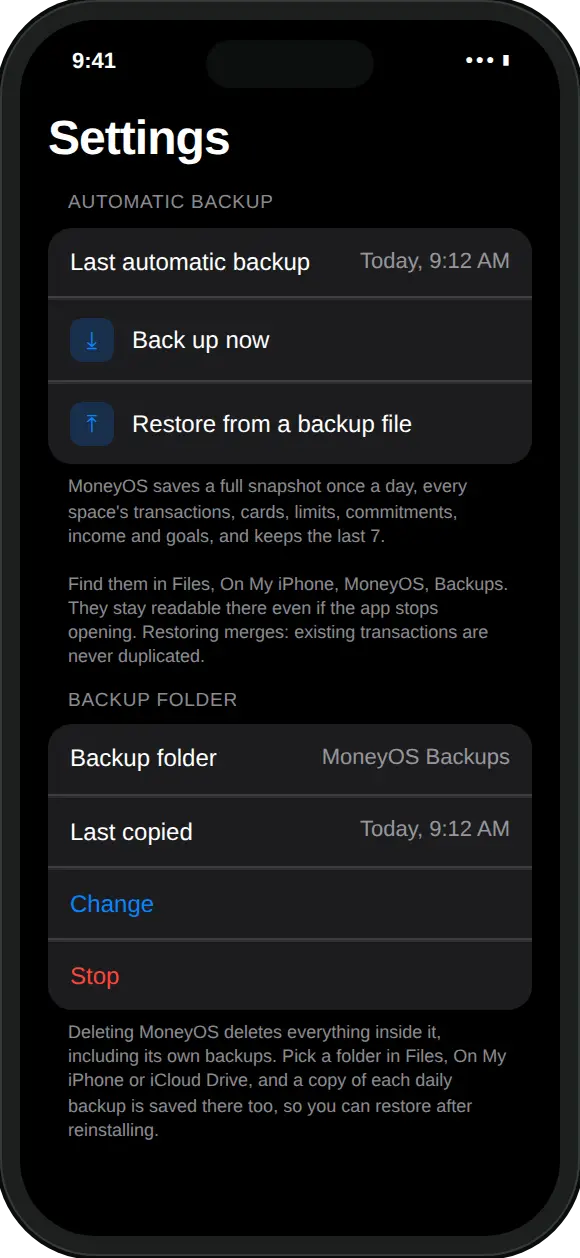
Each snapshot holds every ledger, Personal, Family and Business, with their transactions, cards, limits, EMIs and SIPs, income and goals. You will find them in the Files app, under On My iPhone, MoneyOS, Backups.
The files are plain JSON, so they stay readable even if the app itself will not open. Older ones are cleaned up automatically, one file per day. If you want a fresh copy right now, say before a big change, tap Back up now in Settings.
How do I keep a backup that survives deleting the app?
Choose a Backup folder outside the app, ideally in iCloud Drive. Deleting MoneyOS deletes everything inside it, including its own Backups folder. A copy in a folder you own stays put. Four steps:
- Open Settings. In MoneyOS, go to the Settings tab and scroll to Backup folder.
- Choose a folder. Tap Backup folder and pick a folder in Files, On My iPhone or iCloud Drive. A folder in iCloud Drive is the one that stays safe if the phone itself is lost.
- Check it worked. The folder name and a Last copied time now show in Settings. Tap Back up now if you want a copy straight away.
- Leave it running. From then on, a copy of each daily backup is saved to that folder as well. Tap Stop to end it; copies already there stay where they are.
A folder under On My iPhone survives deleting and reinstalling the app, but not losing the phone. A folder in iCloud Drive covers both. Either way the copy is a file in a place you control, not an account with us.
How do I restore a backup?
In Settings, tap Restore from a backup file and pick the file.
On a new phone or after reinstalling, install MoneyOS, open Settings and choose Restore from a backup file. Pick the latest file from your backup folder in Files.
Restoring merges with what is already in the app. Existing transactions are never duplicated, so running the same restore twice is safe. It only tops up what is missing.
What about exports, encrypted backups and iCloud sync?
They do different jobs. Exports are for reading, the encrypted backup is a locked copy, and sync keeps devices in step.
- Export and share. Share the ledger you have open as a CSV spreadsheet, a PDF report, a Markdown report or plain text. Good for a spreadsheet or for sending a month to someone. These are reports, not backups. See how the three ledgers work.
- Encrypted backup. A copy of all your transactions locked with a passphrase only you hold. Keep that passphrase safe: lose it and the file cannot be opened, by design.
- iCloud sync. Optional and off by default. It keeps your ledger in step across your own devices through your private iCloud. It is not a substitute for the daily backup file.
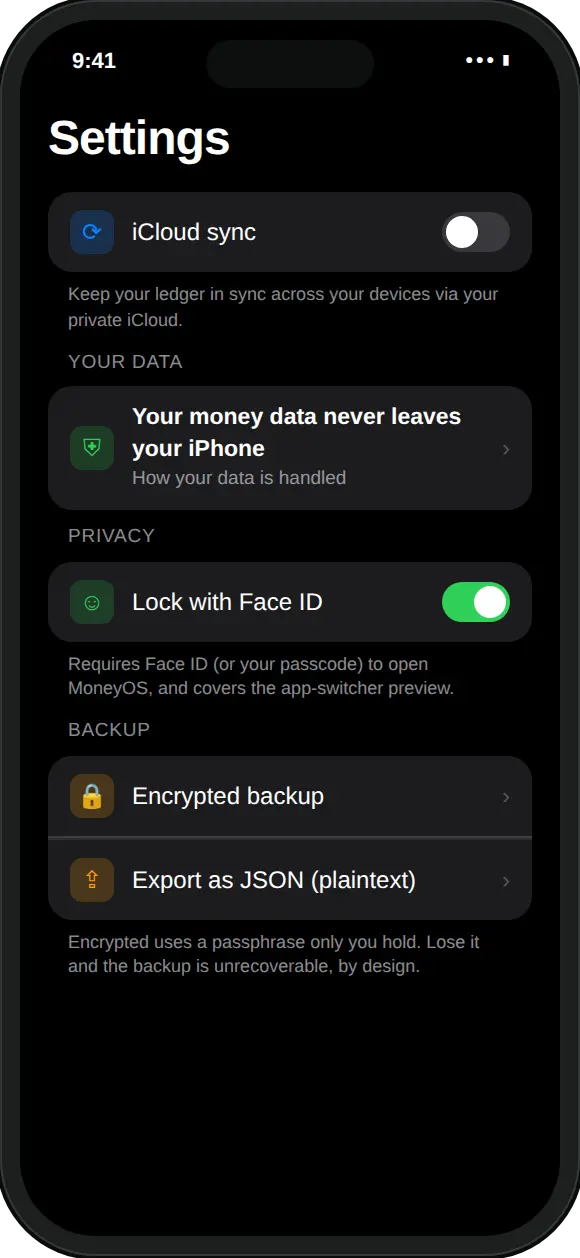
Your data stays on your phone and in the places you choose. Read our privacy policy for the details, or why MoneyOS was built this way.
Frequently asked questions
Does MoneyOS back up my data automatically?
Yes. Once a day it saves a full snapshot of every ledger: transactions, cards, limits, EMIs and SIPs, income and goals. It keeps the last 7, in Files under On My iPhone, MoneyOS, Backups. You can also tap Back up now in Settings at any time.
What happens to my data if I delete the app?
Deleting MoneyOS deletes everything inside it, including its own Backups folder. To keep a copy that survives, choose a Backup folder in Settings, ideally in iCloud Drive, and each daily backup is copied there too.
How do I restore a backup?
In Settings, tap Restore from a backup file and pick a MoneyOS backup file. Restoring merges with what is already there, so existing transactions are never duplicated, even if you restore the same file twice.
Can I export my expenses to a spreadsheet?
Yes. In Settings, under Export and share, you can share the ledger you have open as a CSV spreadsheet, a PDF report, a Markdown report or plain text.
Is iCloud sync the same as a backup?
No. iCloud sync is optional, off by default, and keeps your devices in step through your own private iCloud. The daily backup file is a separate copy you can open, keep and restore from.
Is MoneyOS free?
Yes. The whole app is free, with no subscription, no ads and no in-app purchases. There is no account and no bank login.