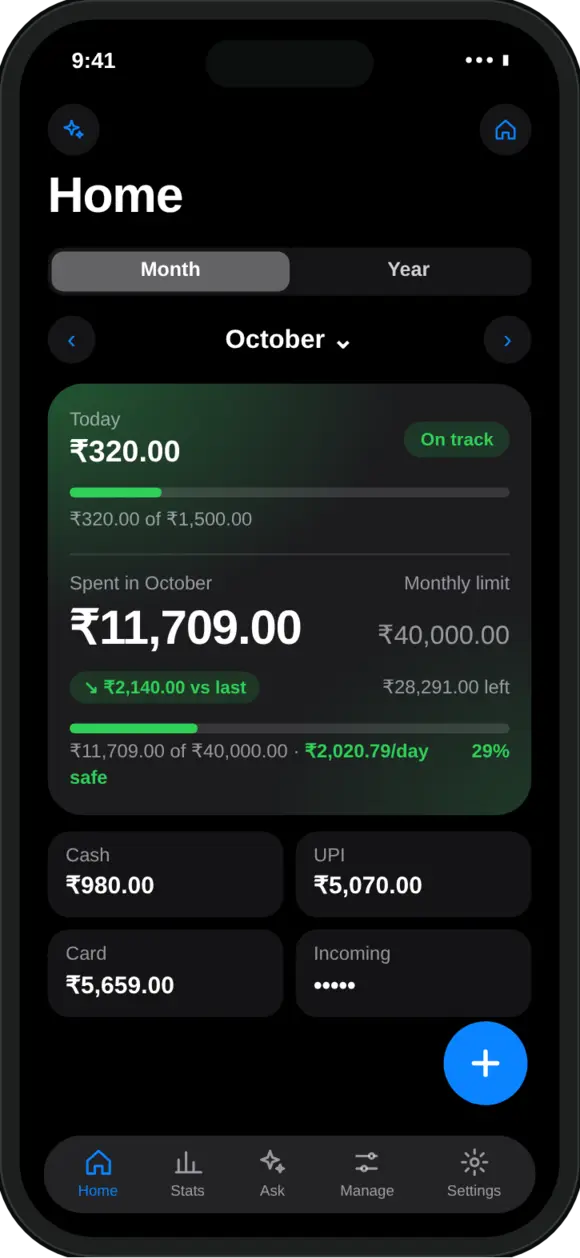
 MoneyOS
Why do expense trackers ask you to log in?
Usually because your data is stored on the company's servers, and the account is how they know which data is yours. It is what lets an app sync between devices or bring your history back on a new phone.
That is a real convenience. But it also means a full list of your payments, with names, amounts and dates, sits on a computer you do not control. An account often comes with an email address or a phone number tied to that list.
An expense tracker does not have to work that way. The phone in your hand has plenty of storage and enough power to sort, total and chart years of spending on its own.
Is an expense tracker without login safer?
For privacy, usually yes. Data that never leaves your phone cannot be exposed in a server breach, shared with partners or kept after you delete the app.
Every extra copy of your data is one more place it can go wrong. With no account and no server, there is one copy, on your device, plus any backup you choose to make. Nobody else can look up your spending, because nobody else has it.
It is not magic, though. Your phone becomes the thing to protect. Use a device passcode, turn on Face ID, and lock the app itself if it lets you. And because there is no company holding a copy, you need your own backup (more on that below).
How do I check if a money app keeps my data private?
Read its App Privacy label, notice what it asks for on first open, and try it in Airplane Mode. Five checks:
- Read the App Privacy label. On the app's App Store page, scroll to App Privacy. “Data Not Collected” means the developer says it collects no data from the app.
- Look at what it asks for on first open. An email, a phone number and OTP, or your bank login before you can add one expense tells you where your data is headed.
- Try it in Airplane Mode. Add an expense with no connection. An app that keeps your data on the phone should work exactly the same.
- Check how sync works. If it syncs between devices, is sync optional, and does it go through your own iCloud or the company's servers?
- Make sure you can lock it and get your data out. Look for a Face ID lock, a backup you control and an export to CSV or JSON.
How does MoneyOS work without an account?
You open it and start adding expenses. There is no sign-up, no login and no bank credentials, and everything is stored on your iPhone.
- Data Not Collected. That is MoneyOS's App Privacy label. The app has no backend, makes no network calls and includes no third-party SDKs.
- On-device smarts. Reading your screenshots, understanding what you type, and Ask (with Apple Intelligence) all happen on the iPhone. Voice entry uses on-device recognition where your iPhone supports it.
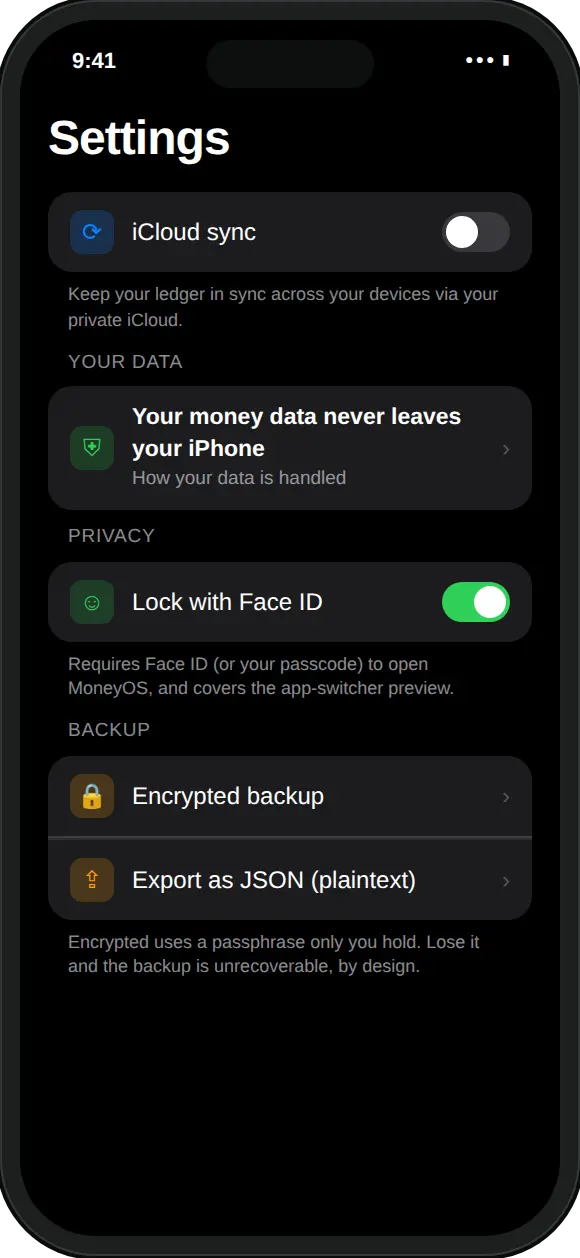
- iCloud sync is optional. It is off by default. Switch it on in Settings and your ledger goes to your own private iCloud, which MoneyOS cannot see.
- Lock with Face ID. Turn it on in Settings, under Privacy. It asks for Face ID or your passcode to open the app and covers the app-switcher preview.
- Hide amounts. A separate setting masks rupee figures on your Home and Lock Screen widgets.
No login also means no bank access. You add money by voice, by typing a line like a text message, from screenshots of your payment history, or by importing CSV and PDF statements. See how to track UPI payments without giving an app your bank login and why iPhone apps can't read your bank SMS.
What is the downside of an app with no account?
There is no company copy to restore from. If the phone is lost or the app is deleted, only your own backup brings your data back. So set one up on day one.
| Backup option in MoneyOS | What it does |
|---|---|
| Automatic daily backup | A full snapshot once a day, last 7 kept, in Files, On My iPhone, MoneyOS, Backups. Deleted along with the app. |
| Backup folder | Pick a folder in Files or iCloud Drive and each daily backup is copied there too, so it survives a reinstall. |
| Encrypted backup | A file locked with a passphrase only you hold. Lose the passphrase and it cannot be opened, by design. |
| iCloud sync | Optional. Keeps your ledger in your own private iCloud, across your devices. |
| Export | Share your ledger as CSV, JSON, a report or plain text whenever you want it out. |
One honest detail: the daily snapshots are plain, readable files, so they still work if the app ever stops opening. They stay on your device unless you pick a backup folder or share them. For a copy that travels, use the encrypted backup.
For the full picture of how your data is handled, read our privacy policy, or start with our introduction to MoneyOS. You can also see everything the app does on the MoneyOS home page.
Frequently asked questions
Is there an expense tracker that works without login?
Yes. MoneyOS for iPhone and iPad has no sign-up and no login. You open it and start adding expenses. Your data is stored on the device, and its App Privacy label says Data Not Collected.
Is an expense tracker without an account safer?
For privacy, usually yes. If your spending never leaves your phone, there is no copy on a company server that could be breached, shared or kept after you stop using the app. Your phone's own security, such as a passcode and Face ID, matters more.
What happens to my data if I lose my phone?
With no account there is no server copy, so backups are up to you. In MoneyOS you can turn on iCloud sync, pick a backup folder in Files or iCloud Drive for the daily backup, or save an encrypted backup protected by a passphrase.
Can I use MoneyOS on two devices without an account?
Yes, if you switch on iCloud sync in Settings. It is off by default and keeps your ledger in your own private iCloud, which MoneyOS cannot see.
Does MoneyOS need my bank login or SMS access?
No. You add money by voice, by typing, from screenshots of your payment history, or by importing CSV and PDF statements. Nothing needs your bank credentials.
Is MoneyOS free?
Yes. The whole app is free, with no subscription, no ads and no in-app purchases.