 MoneyOS
Why are UPI payments so hard to keep track of?
Because they are small, constant and spread across apps. A ₹20 chai, a ₹340 Swiggy order and a ₹212 Uber ride never feel like much on their own, and they may be split between Google Pay, PhonePe, Paytm and your bank app.
Cash used to give you a natural check: you could see your wallet getting thinner. UPI removes that friction, which is exactly why it is so convenient and exactly why a month can disappear without a clear picture of where it went.
What are the ways to track UPI payments?
There are four common approaches, and they differ mostly in how much access you give away.
| Method | Effort | What you share |
|---|---|---|
| Typing each payment | High | Nothing |
| Linking your bank to an app | Low | Bank access or account data |
| Reading SMS (Android only) | Low | All your text messages |
| Screenshots of payment history | Low | Only what you screenshot, read on device |
Linking a bank gives an app a continuous feed of your financial life, usually stored on its servers. Screenshots give you most of the convenience with none of that: you decide exactly what gets read, and with MoneyOS it never leaves your phone.
How do I track UPI payments with screenshots?
Screenshot your payment history, then import the screenshots into MoneyOS. It takes about a minute:
- Open your payment history in Google Pay, PhonePe, Paytm or your bank app.
- Take screenshots as you scroll. Pick up to 10 at once, enough for a busy week or more.
- In MoneyOS, tap the add button, then Photos, and select the screenshots. You can also copy screenshots and use Paste.
- Review and import. Every row lands in a review list. Untick what you don’t want, fix what’s wrong, then tap Import.
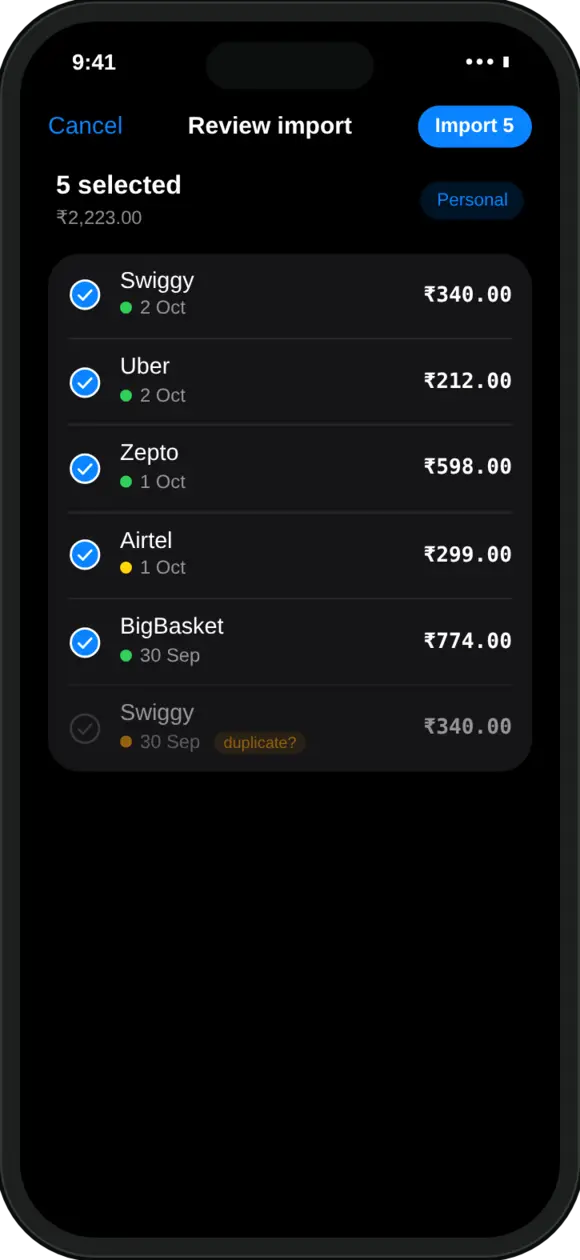
Because likely repeats are flagged, overlapping screenshots are not a problem. If this week’s screenshots include a few payments you already imported last week, they show up marked as possible duplicates and you simply untick them.
The reading happens on your iPhone. MoneyOS has no account and no server to send your screenshots to, so your payment history stays with you. You can read more in our privacy policy.
What about bank SMS and statements?
On iPhone, no app can read your SMS automatically. That is an iOS rule that applies to every app, not a missing feature. You still have three quick routes:
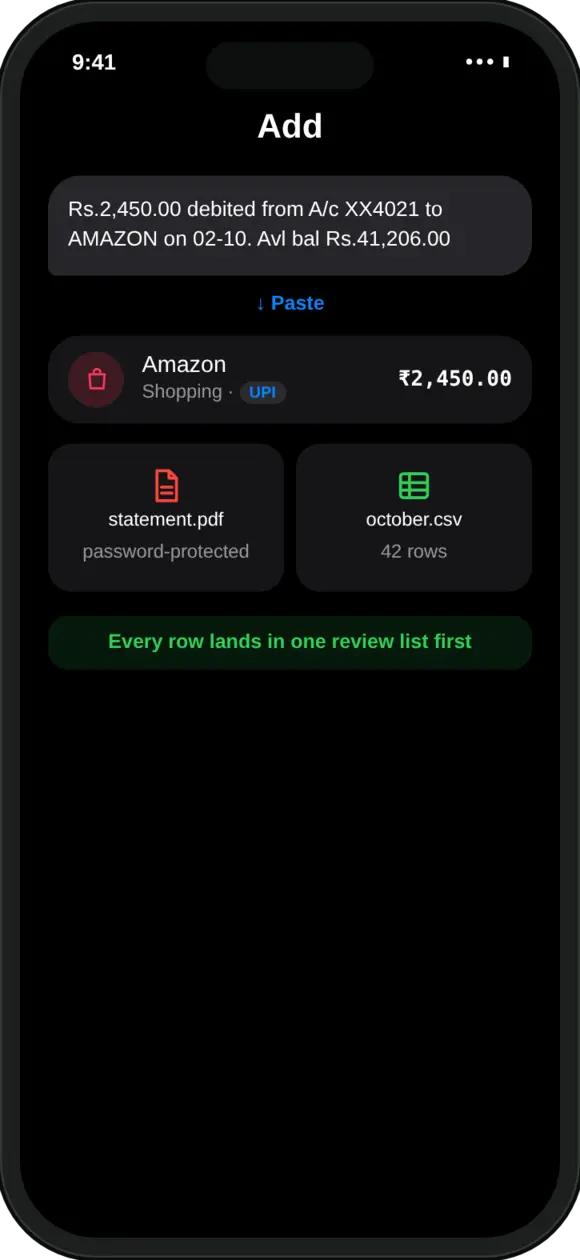
- Paste a bank SMS. Copy the debit message and paste it into MoneyOS. The amount and merchant are read into the same review list.
- Import a statement. Drop in a CSV or PDF bank statement, including password-protected PDFs, to catch up on a whole month at once.
- Share a bank email from Mail straight into MoneyOS.
Screenshots are usually fastest for day-to-day UPI spending, because one screenshot covers many payments. Statements are best for filling in a whole month you missed.
How often should I import my UPI history?
Once a week is enough for most people. Pick a fixed moment, such as Sunday evening, take screenshots of the last seven days and import them in one go.
For spends that matter in the moment, like a dinner you want to count against today’s limit, log it as it happens by typing one line such as “dinner 850” or by saying it. Between quick entries and a weekly screenshot import, nothing slips through.
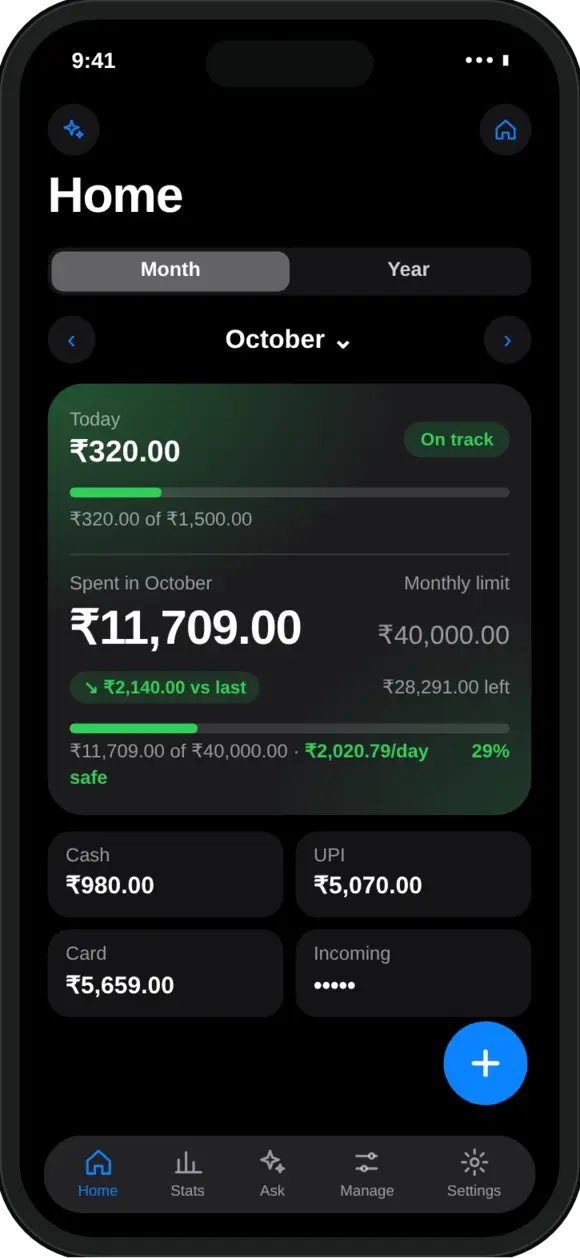
Once your payments are in, MoneyOS shows what you have spent today and this month, what is safe to spend per day, and a heat map of which days went over. You can see how all of that works in our introduction to MoneyOS.
Frequently asked questions
Can I track UPI payments without linking my bank account?
Yes. You can screenshot the payment history in your UPI app and import the screenshots into an expense tracker that reads them on your phone. MoneyOS reads up to 10 screenshots at once and never asks for bank credentials.
Which UPI apps does screenshot import work with?
MoneyOS reads payment history screenshots from Google Pay, PhonePe and Paytm, as well as Venmo, Revolut and bank apps.
Are my screenshots uploaded anywhere?
No. MoneyOS reads screenshots on your iPhone. They are not sent to MoneyOS or to any server, and the app has no account to upload them to.
What happens if I import the same payment twice?
Every import lands in a review list first, and likely repeats are flagged so you can untick them before anything is saved.
Why can't an iPhone app read my bank SMS automatically?
iOS does not allow any app to read your SMS. You can paste a bank SMS into MoneyOS instead, or use payment history screenshots, which cover many payments at once.
Is MoneyOS free?
Yes. The whole app is free, with no subscription, no ads and no in-app purchases.