 MoneyOS
Why set a budget for each category?
Because a single monthly number hides where the money went. A limit per category shows exactly which habit is running ahead.
Food delivery, fuel and online shopping are where most people's spending moves the most from one month to the next. Rent and EMIs stay the same. Small UPI payments for snacks, a full tank and a sale on your favourite shopping app are the ones that add up without you noticing.
With a separate limit on each, you find out on the 18th that food is at 80% while fuel is fine, instead of finding out on the 30th that the month is over budget. You can still keep one total limit for the whole month on top.
How do I decide how much to budget for food, fuel and shopping?
Start with what you actually spent in each category last month. That is a real number, not a guess.
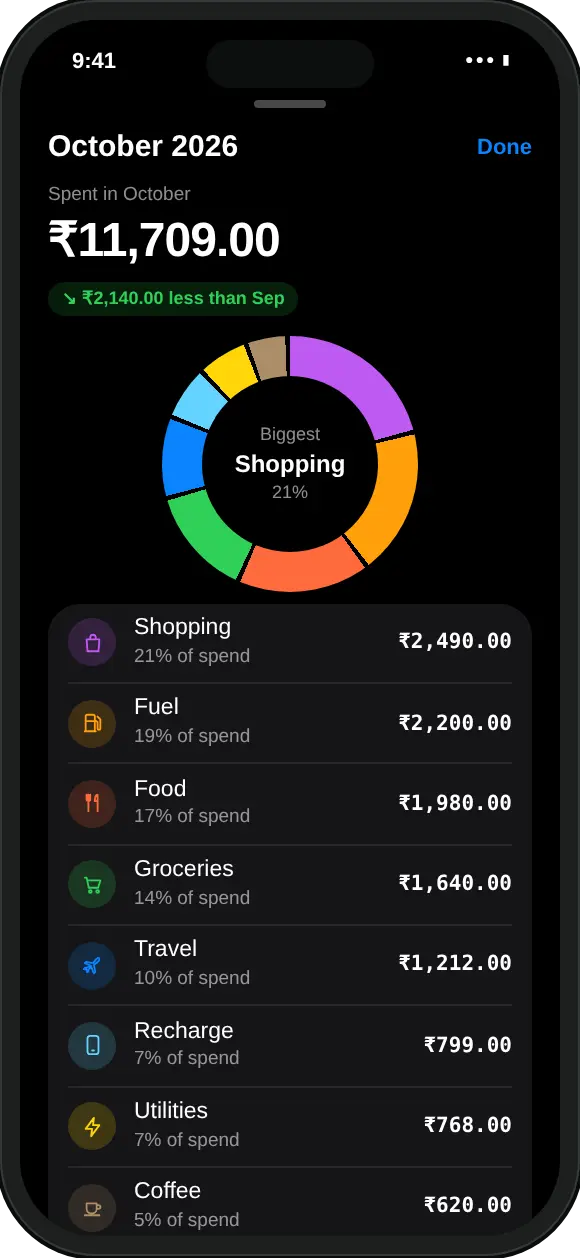
- Look at last month. On Home in MoneyOS, switch Transactions from All to Categories to see each category's total. Tap one to see every payment in it.
- Fixed or flexible? Fuel often depends on your commute, so last month's figure may be right as it is. Food and shopping usually have more room.
- Trim gently. A limit you can keep is more useful than a strict one you ignore by the 10th. Adjust it after a month of real numbers.
- Leave the fixed bills out. Rent, EMIs and subscriptions are already known, so they rarely need a limit of their own.
If you have not been tracking yet, log a few weeks first. How to see where your Google Pay and PhonePe money went shows how to bring in a month of UPI payments from screenshots.
How do I set a category budget in MoneyOS?
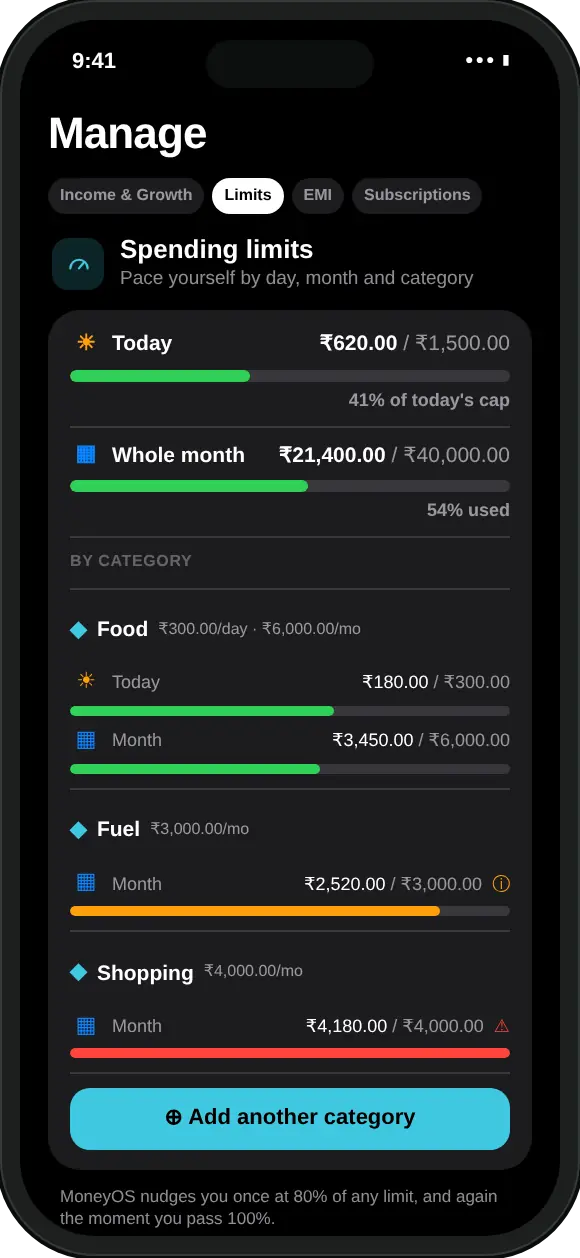
Open Manage, tap Limits, add a category limit, pick the category, set an amount and tap Save. Five steps:
- Open Limits. Open the Manage tab and tap Limits at the top.
- Add a category limit. Under Spending limits, tap Add a category limit (or Add another category once you have one).
- Pick the category. Choose Food, Fuel, Shopping or any other category, including your own custom ones.
- Set the amount. Type a monthly limit, a daily limit, or both. Each one is optional.
- Save. Tap Save. The category appears with a bar for each limit, and the alerts are on from here.
Every category can have a monthly limit, a daily limit, or both. A daily limit on food, for example ₹300 a day, resets each morning, while the monthly one keeps the month on pace. The same screen also has a daily limit and a monthly limit for all your spending. If the daily one is new to you, read how to work out a safe daily spending limit from your salary.
Limits belong to the ledger you are in, so your Personal, Family and Business ledgers each keep their own.
What happens when I reach 80% or 100% of a budget?
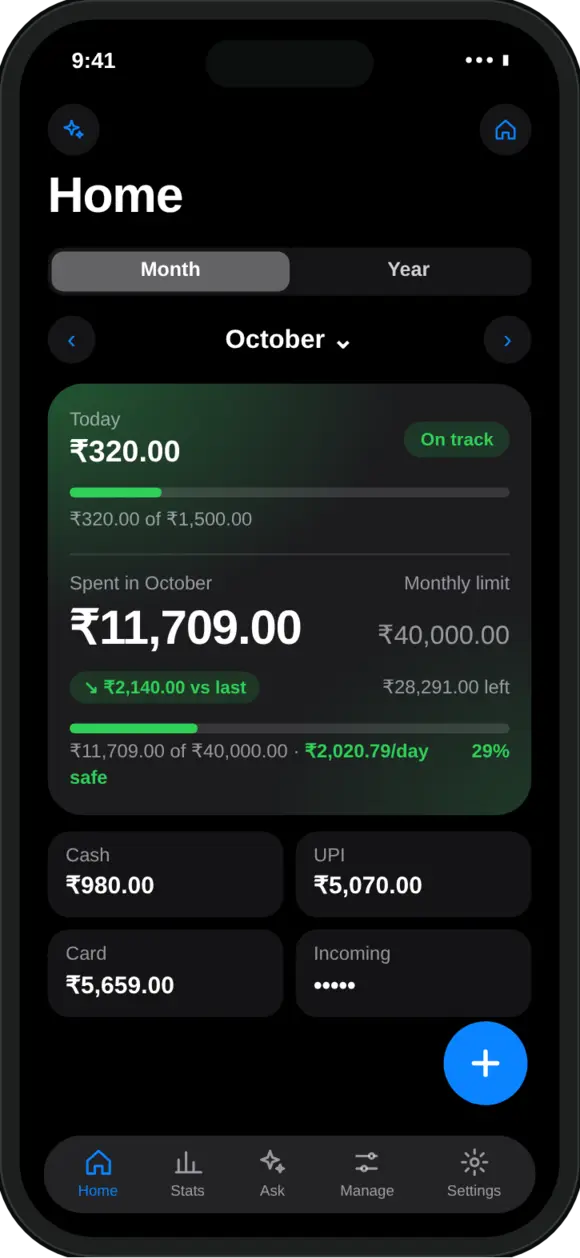
You get one notification at 80% and one more at 100%. The bar also turns amber, then red.
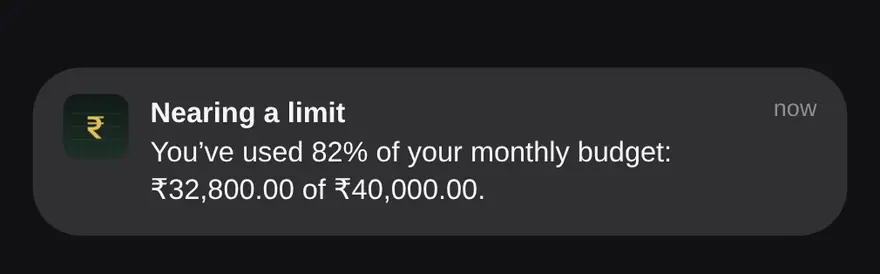
- Checked when you log. Each time an expense is saved, typed, spoken or imported, MoneyOS checks every limit.
- Even with the app open. The alert shows as a banner while you are using the app, the moment an expense takes a limit past 80% or 100%.
- Once, not on repeat. Each limit alerts once per level. A monthly limit starts fresh next month, and a daily limit starts fresh the next day. If one payment jumps straight past 100%, you get only the 100% alert.
- On the Lock Screen too. The Live Activity shows how much of this month's total budget you have used, in %.
The first time a limit is crossed, iOS asks whether MoneyOS may send notifications. If you say no, nothing is lost: turn notifications on later and the next alert still arrives.
Can I set a spending limit on a credit card?
Yes. Add the card under Manage, Limits, Cards, and set Your spend limit. It gets the same 80% and 100% alerts.
| Limit | What it counts |
|---|---|
| Monthly limit | All your spending this month, the same total you see on Home. |
| Daily limit | Only today's spending. Resets every day. |
| Category limit | One category, by month, by day, or both. |
| Card spend limit | Every charge on that card this month. |
The card form has two amounts. Card limit is the bank's credit line. Your spend limit is a monthly pace you set for yourself, and 0 means no limit. MoneyOS warns you if your spend limit is above the card's limit.
One difference matters: monthly and category budgets leave out SIPs and other investments, because saving is not spending. A card's spend limit counts every charge on it, so a SIP paid by card still uses that card's limit. More on that in why your SIP should not count as spending.
Everything stays on your iPhone, with no account and no bank login. For a tour of the rest of the app, read our introduction to MoneyOS, and for how your data is handled, our privacy policy.
Frequently asked questions
What is a category budget?
A category budget is a spending limit for one kind of spending, like food, fuel or shopping, instead of one number for the whole month. It shows which part of your spending is running ahead, so you know exactly where to slow down.
How do I set a category budget in MoneyOS?
Open the Manage tab and pick Limits. Under Spending limits, tap Add a category limit, choose the category, type a monthly limit, a daily limit or both, and tap Save. You can add as many categories as you like, including your own custom ones.
When does MoneyOS send a budget alert?
Once when a limit reaches 80%, and once more when it reaches 100%. If one expense takes a limit straight past 100%, you get the 100% alert only. Monthly limits start fresh each month, and daily limits start fresh each day.
Can I set a limit on a credit card?
Yes. In Manage, under Limits, add the card in the Cards section and fill in Your spend limit, a monthly pace you set for yourself. Card limit is a separate field for the bank's credit line. The card's spend limit gets the same 80% and 100% alerts.
Do SIPs count against my budget?
Not against your monthly or category budgets. Those use the same spending you see on Home, which leaves out SIPs and other investments. A card's spend limit counts every charge on that card, so a SIP paid by card still uses that card's limit.
Is MoneyOS free?
Yes. The whole app is free, with no subscription, no ads and no in-app purchases. There is no account and no bank login, and your data stays on your iPhone.