 MoneyOS
Why are bank statement PDFs password-protected?
So that only you can open them. A statement shows your account number, balance and every payment, and email is not a private place.
If the email is forwarded, misdirected or opened on a shared computer, the lock keeps the details hidden. The password is usually something only the account holder knows. Banks often use your customer ID or a mix of your name and date of birth, and the email that carries the statement usually tells you the format. A CAS (consolidated account statement) for mutual funds uses your PAN plus your date of birth.
The lock is good for privacy, but it stops most apps from reading the file. Many people end up retyping a month of payments by hand. You do not have to.
How do I import a password-protected bank statement PDF?
Save the PDF to Files, open it from the PDF import in MoneyOS, type the password, review the rows and tap Import. Five steps:
- Save the statement to your iPhone. Download the PDF from your bank's email or net banking and save it to the Files app.
- Open the PDF import. In MoneyOS, open Add. Under “Or bring in a batch”, tap PDF and pick the statement.
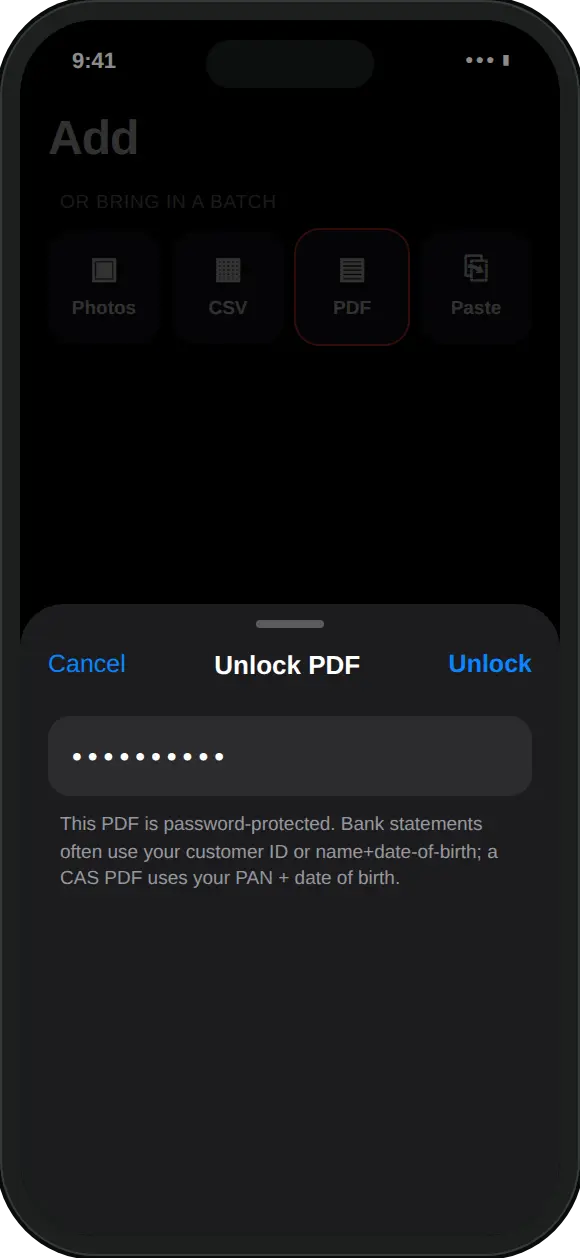
- Enter the password. A locked PDF opens the Unlock PDF sheet. Type the password and tap Unlock.
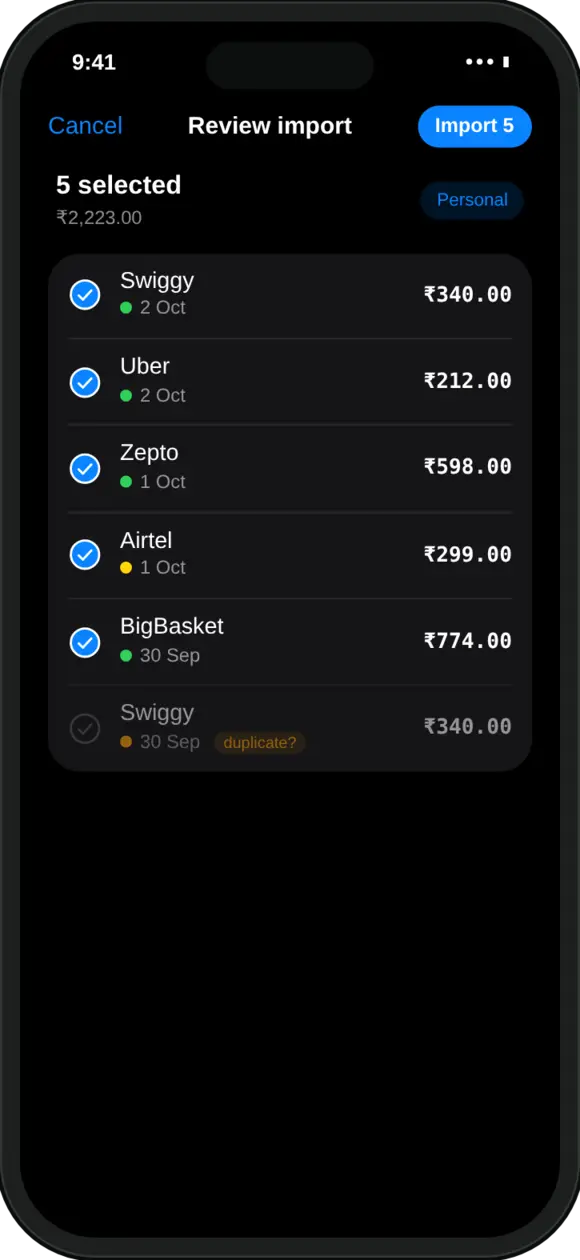
- Review the rows. Every transaction lands in one review list. Change a category or type, or untick a row you do not want.
- Import. Tap Import. Nothing is saved before you do.
Statements without a lock skip step 3. If your bank also offers a CSV download, the CSV tile takes that the same way, and a PDF picked from the CSV tile by mistake is still read as a PDF.
Is it safe to type my statement password into an app?
In MoneyOS, the password is used only to open the file on your iPhone. It is not saved, and the statement is never uploaded.
- Unlocked on the phone. The app opens the PDF with Apple's own PDF tools on your iPhone and reads its text there.
- Not saved. The password is not stored. Next month's statement asks again.
- No upload. MoneyOS makes no network calls and has no servers, so the statement, the password and the rows stay on your phone.
- No bank login. You never give the app your net banking ID, password or OTP. The statement is a file you chose to open.
That is a big difference from apps that ask for your bank login to fetch transactions. Read more in how to track UPI payments without giving an app your bank login.
How does MoneyOS check the rows from my statement?
Every row goes to a review list first. Likely duplicates are unchecked, and nothing is saved until you tap Import.
- Amount, not balance. Many Indian bank statements show a running closing balance next to each payment. MoneyOS reads the withdrawal or deposit, not the balance.
- Rows it cannot read cleanly are left out, and it says so. You see a note like “2 rows couldn't be read cleanly and were left out”, so you can add them by hand. They are left out rather than guessed.
- Duplicates are unchecked. If you already logged a payment, the matching row is flagged and left unticked.
- EMIs, SIPs and subscriptions. A row that matches one you track can be linked to it, so it is not counted twice.
What if my bank statement PDF will not import?
Most problems are a wrong password, a scanned PDF with no text, or a locked file shared from Mail. Here is what each message means:
| What you see | What to do |
|---|---|
| “Wrong password, or the PDF has no readable text.” | Check the password format in your bank's email. Passwords are often case-sensitive. |
| “That PDF had no readable text.” | It is likely a scanned image. Ask your bank for an e-statement or a CSV, or try screenshots of the pages through Photos. |
| “Rows couldn't be read cleanly and were left out” | The other rows are fine. Add the missing ones by hand from your statement. |
| Shared from Mail and nothing appeared | Locked PDFs are skipped from the share sheet. Save the PDF to Files and use the PDF import. |
Unlocked statements and alert emails can still be shared straight from Mail. See why iPhone apps can't read your bank SMS for that route, and how to see where your Google Pay and PhonePe money went for screenshot imports. For a tour of the whole app, read our introduction to MoneyOS, and for how your data is handled, our privacy policy.
Frequently asked questions
Can I import a password-protected bank statement PDF on iPhone?
Yes. In MoneyOS, open Add, tap PDF under Or bring in a batch and pick the file. A locked PDF opens an Unlock PDF sheet where you type the password. The file is read on your iPhone and every row goes to a review list before anything is saved.
What is the password for my bank statement PDF?
It depends on your bank. Banks often use your customer ID or a mix of your name and date of birth, and the email that carries the statement usually explains the format. A CAS PDF uses your PAN plus your date of birth.
Does MoneyOS save my PDF password?
No. The password is only used to open the file on your iPhone so the app can read its text. MoneyOS does not save it and makes no network calls, so the password and the statement never leave your phone.
Why does it say the PDF has no readable text?
Some PDFs are scanned images of paper pages, with no text layer to read. Ask your bank for an e-statement or a CSV instead, or try screenshots of the pages through the Photos import.
Can I share a locked statement from Mail to MoneyOS?
Unlocked statements, yes. A password-protected PDF shared from Mail is skipped because the share sheet has no place to ask for the password. Save it to Files and open it from the PDF import instead.
Is MoneyOS free?
Yes. The whole app is free, with no subscription, no ads and no in-app purchases. There is no account and no bank login.